Choose the terminal that fitsyour prop trading workflow.
HF Trading 8 supports a prop-firm platform path built around cTrader, MetaTrader 5, MetaTrader 4, Match-Trader, and optional terminals where available. Each guide should make access, provider details, instruments, mobile support, and rules easy to understand.
Supported terminals
Platform access for modern prop trading.


Jump directly to the platform your trader uses.
Order is intentional: cTrader first, then MetaTrader 5, MetaTrader 4, Match-Trader, and optional terminals.

cTrader
Web-first terminal
Clean execution, clear charts, and a modern web/mobile workflow.

MetaTrader 5
Multi-market terminal
A powerful workspace for traders who prefer MetaTrader flow.

MetaTrader 4
Classic terminal
A classic terminal for traders who prefer a lightweight setup.

Match-Trader
Prop trading terminal
A streamlined terminal for fast access and clear account control.
DXtrade
Optional web terminal
A flexible web terminal option for supported accounts.

TradeLocker
Optional terminal
A modern terminal option for supported accounts.
cTrader
Web-first terminal
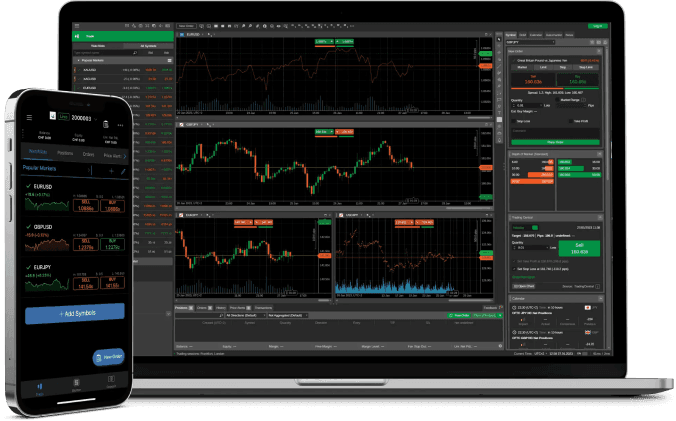
Clean execution, clear charts, and a modern web/mobile workflow.
cTrader is a strong fit for traders who want a refined interface, clean charting, simple order panels, and a smooth experience across desktop, tablet, and phone.
Modern interface
Clean chart navigation, watchlists, order tickets, and account panels.
Web and mobile friendly
Useful when traders need fast access from browser, tablet, or phone.
Clear order control
A focused layout helps traders manage positions and risk limits.
Smooth onboarding
Simple credentials flow after the account is created.
Setup flow
Use this as the platform-specific onboarding checklist.
Important notes
Keep these visible before the trader starts.
MetaTrader 5
Multi-market terminal
A powerful workspace for traders who prefer MetaTrader flow.
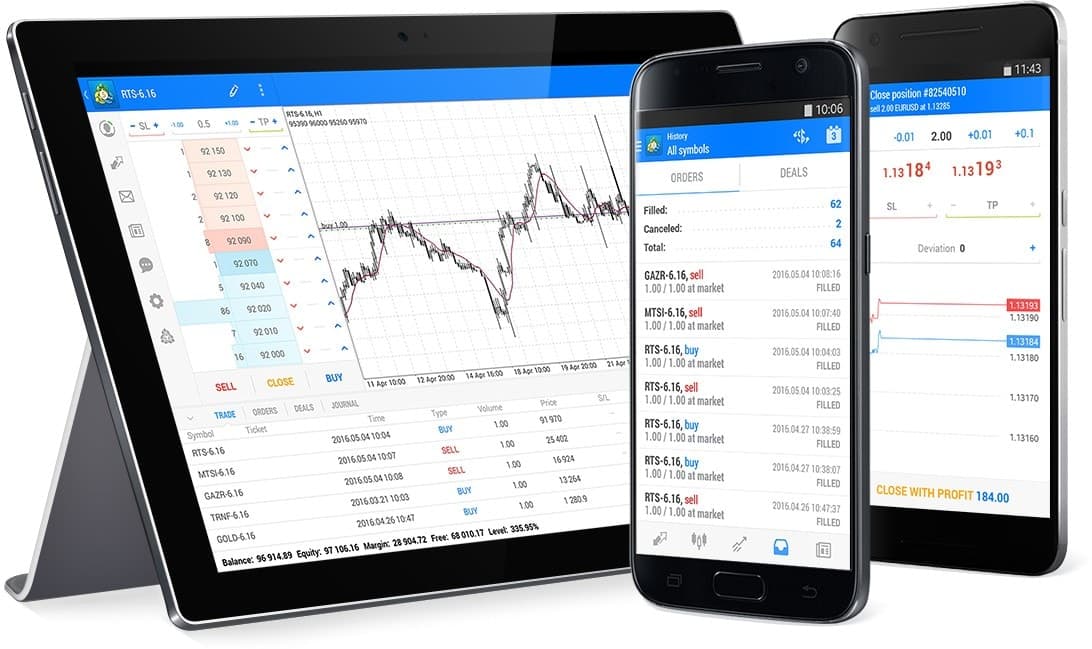
MetaTrader 5 gives traders a familiar charting layout, desktop stability, mobile access, and a large ecosystem for structured trading routines.
Professional workspace
Use multiple charts, profiles, templates, indicators, and order panels.
Mobile access
Monitor positions and account status from phone or tablet.
Flexible charting
Works well for multiple timeframes and structured trading routines.
Familiar platform
Many traders already understand MT5 login, server, and symbol flow.
Setup flow
Use this as the platform-specific onboarding checklist.
Important notes
Keep these visible before the trader starts.
MetaTrader 4
Classic terminal
A classic terminal for traders who prefer a lightweight setup.
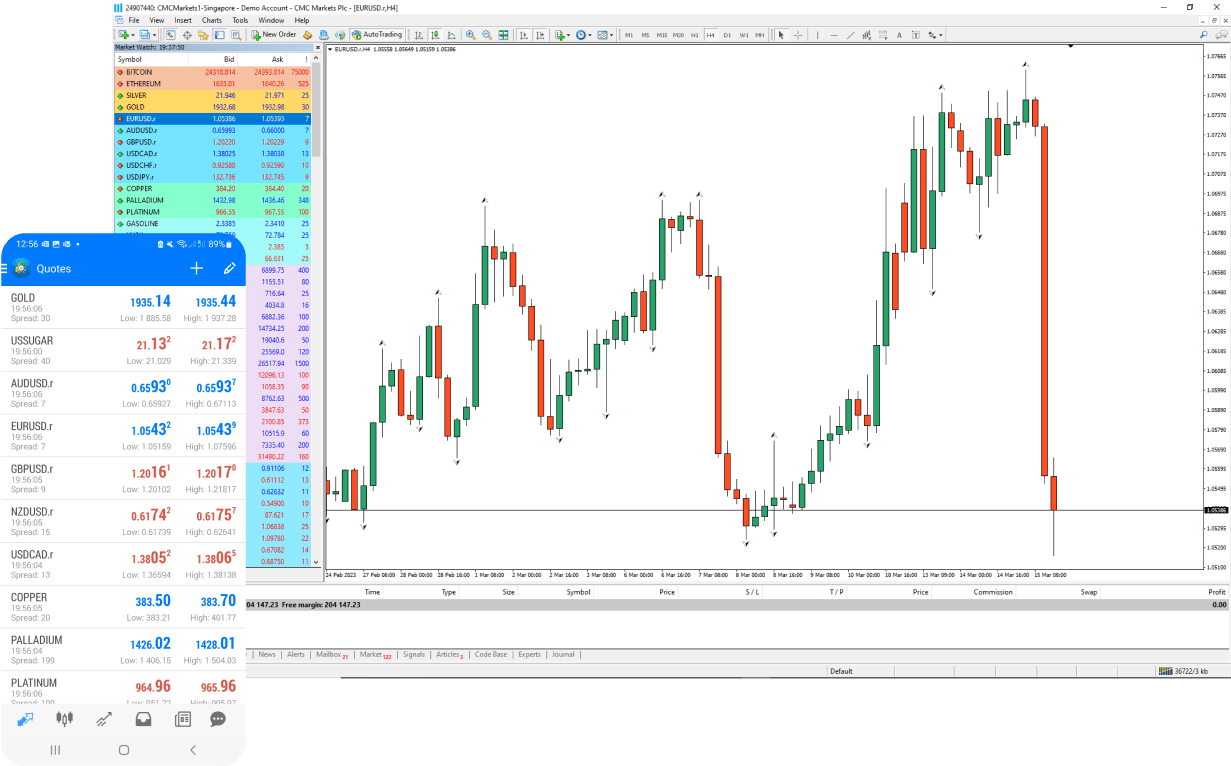
MetaTrader 4 remains familiar to many traders. It is direct, lightweight, and comfortable for traders who already use MT4 templates and classic order management.
Familiar layout
A simple interface that many traders have used for years.
Lightweight terminal
Useful for traders who prefer a fast desktop setup.
Template workflow
Works well with saved chart templates and repeatable setups.
EA policy control
Automation is allowed only when the specific program permits it.
Setup flow
Use this as the platform-specific onboarding checklist.
Important notes
Keep these visible before the trader starts.
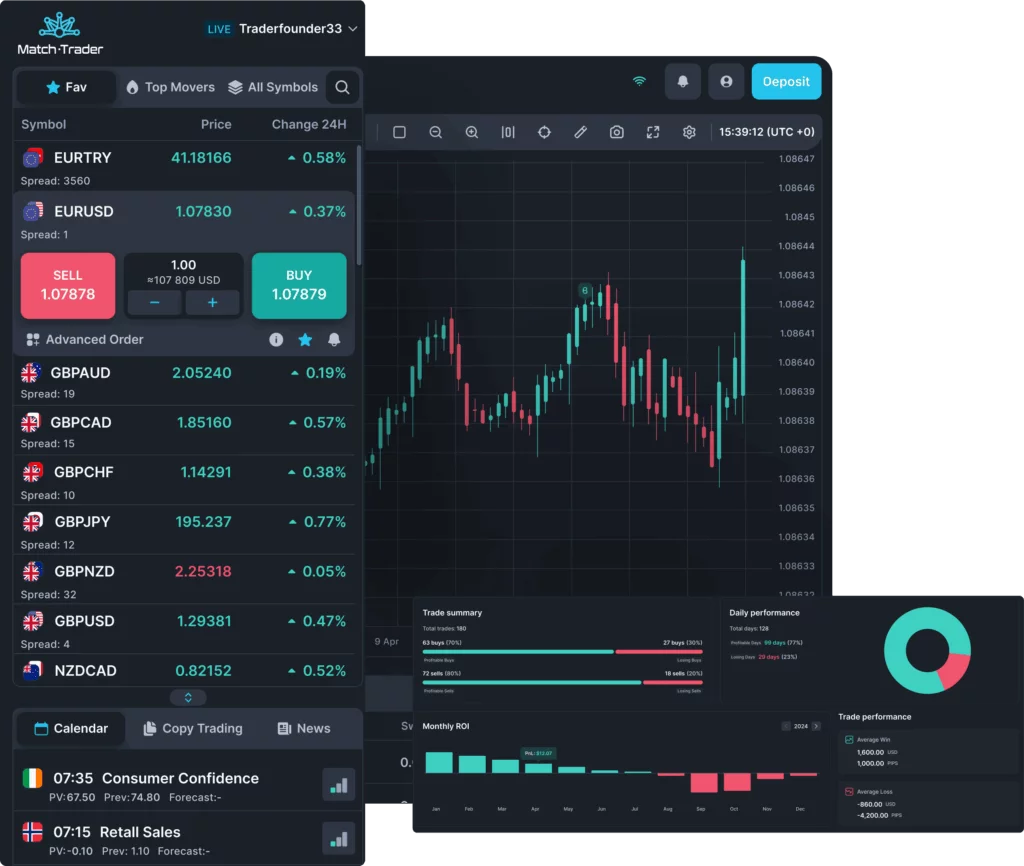
Match-Trader
Prop trading terminal
A streamlined terminal for fast access and clear account control.
Match-Trader is useful for prop-firm flows where traders need clean platform access, straightforward account control, and a smooth web/mobile trading experience.
Simple login flow
Designed around fast access after credentials are issued.
Clean trading panels
Focused interface for managing positions without clutter.
Web-first usage
Good for traders who do not want to rely only on desktop.
Challenge-friendly layout
Useful for monitoring account status, balance, equity, and limits.
Setup flow
Use this as the platform-specific onboarding checklist.
Important notes
Keep these visible before the trader starts.
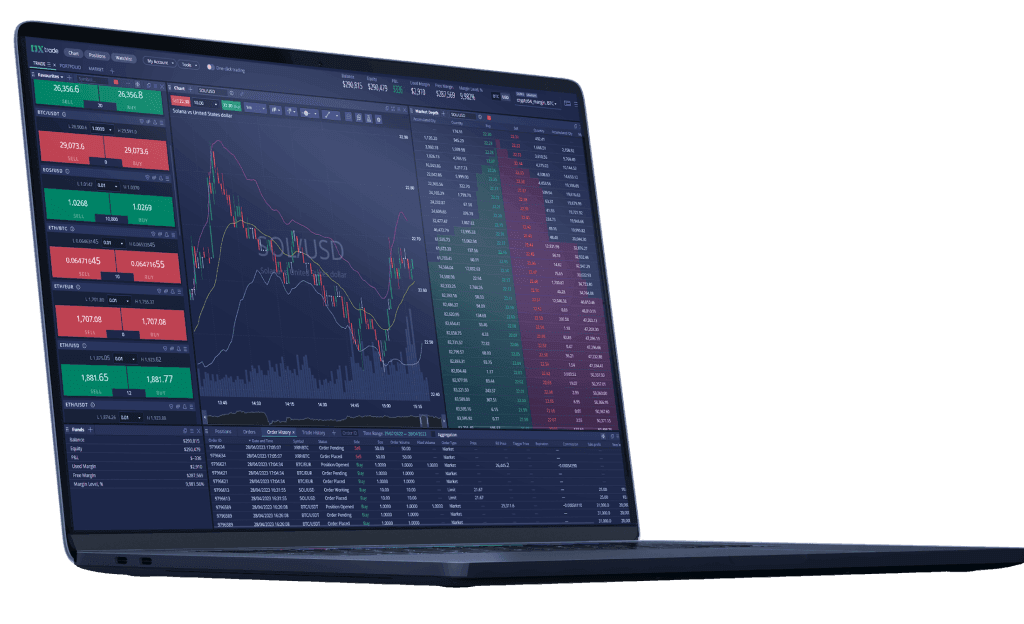
DXtrade
Optional web terminal
A flexible web terminal option for supported accounts.
DXtrade can be used as an additional web-focused platform when supported by the final provider setup. Keep this section active only if DXtrade is part of your operational platform list.
Web platform access
Useful when traders need browser-based trading.
Account overview
Clear panels for balance, equity, and open positions.
Provider symbols
Symbols and sessions must match final provider configuration.
Simple support path
Good for guided onboarding with controlled platform links.
Setup flow
Use this as the platform-specific onboarding checklist.
Important notes
Keep these visible before the trader starts.
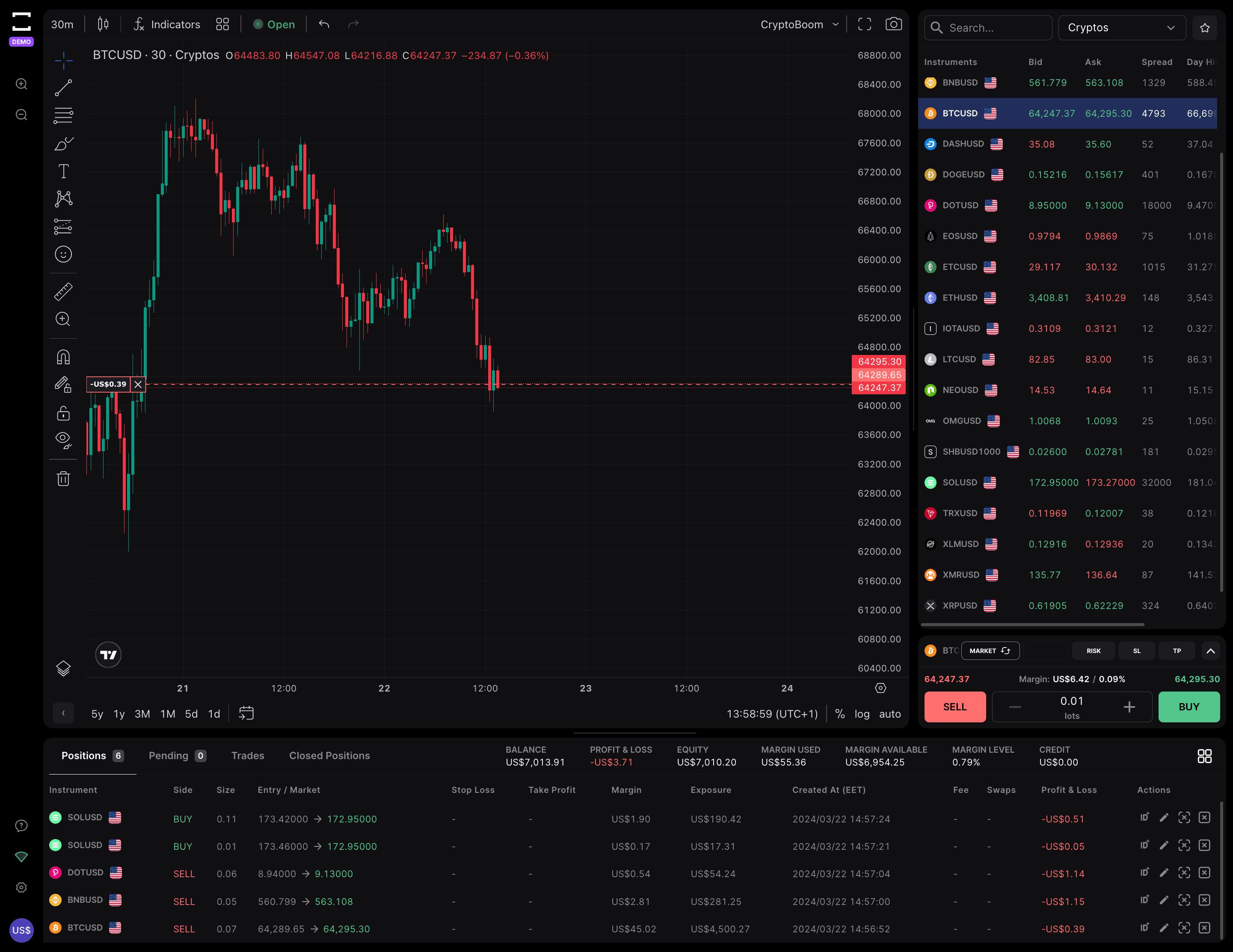
TradeLocker
Optional terminal
A modern terminal option for supported accounts.
TradeLocker can be presented as an additional modern platform if your provider supports it. It should remain clearly marked as optional until final operational availability is confirmed.
Modern interface
Clean trading experience for traders who prefer newer design.
Fast onboarding
Supports simple credential-based access when provider setup is complete.
Clear watchlists
Useful for quick access to selected symbols and charts.
Optional path
Publish as available only when the route supports it.
Setup flow
Use this as the platform-specific onboarding checklist.
Important notes
Keep these visible before the trader starts.
What every platform guide should include before launch.
These items make the public platform page useful instead of being only a logo grid.
Platform access link
Each guide should show where the trader opens the terminal and whether desktop, web, iOS, or Android is supported.
Provider and login flow
Show provider/server name, login flow, account type, and where credentials appear inside the client area.
Symbols and instruments
Explain symbols, suffixes, sessions, commissions, spreads, swaps, and instrument availability.
Rules connection
Link every platform guide back to the Rules Center before traders use automation, VPN/VPS, weekend holding, or news trading.
Mobile and tablet support
Use responsive screenshots so each platform looks strong on phone, tablet, and desktop.
Support escalation
Tell traders what to send support if credentials, symbols, balance, provider, or account status are wrong.
A simple sequence for new challenge accounts.
This keeps traders from opening positions before the platform, account, and rules are confirmed.
Choose your program and confirm platform availability.
Open the platform guide before checkout or before first trade.
Receive credentials inside the client area after account creation.
Install the terminal or open the web platform.
Verify provider, account, balance, symbols, sessions, and rules.
Start trading only after everything matches the account instructions.
Credential safety
Never share platform credentials with account management services, passing services, or unknown support accounts.
Risk visibility
Before trading, confirm how your program calculates daily loss, maximum loss, equity, balance, and session resets.
Connection issues
If platform connection, symbols, provider, or account balance look wrong, contact support before opening positions.
Platform availability, providers, access links, symbols, suffixes, leverage, commissions, swaps, data feeds, trading hours, supported instruments, and execution conditions must match the final operational setup before production launch.
Choose a program after checking platform fit.
Platform familiarity matters. Pick the route and terminal that match your trading workflow, then read the rules before trading.